A 32-bit operating system processes data in 32-bit chunks and addresses only about 4 GB of RAM, so it suits older, lighter machines. A 64-bit operating system processes data in 64-bit chunks and addresses far more memory, so it is faster and better for modern, demanding work. In short, 64-bit is the modern standard, while 32-bit is mostly legacy.
The choice between a 32-bit and a 64-bit operating system shapes performance, memory use, and software compatibility. Both appear in operating-systems and hardware courses, so students need to know exactly what the “bit” count changes.
The number refers to how the CPU handles data: a 32-bit system works in 32-bit pieces, while a 64-bit system works in 64-bit pieces. This guide defines each type, compares them in detail, and shows when to use which.
It builds on memory basics, so it also helps to know SRAM vs DRAM.
What 32-bit and 64-bit Mean
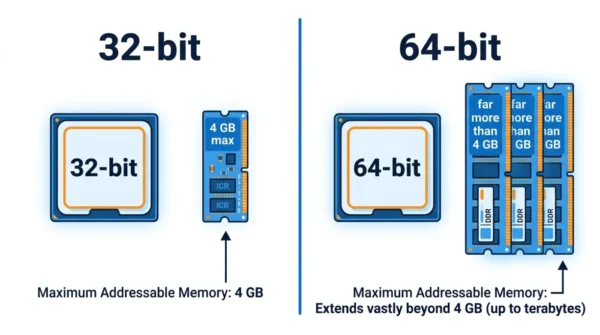
The terms “32-bit” and “64-bit” describe how a computer’s CPU handles information. In a 32-bit system, the CPU processes data in 32-bit pieces, whereas in a 64-bit system, it works in 64-bit pieces. So this one difference ripples through memory, speed, and compatibility.
Advantages of 64-bit: stronger performance, support for far more RAM, better security features, and native 64-bit applications.
Disadvantages of 64-bit: it may not run very old 32-bit or 16-bit apps, it can raise compatibility questions, and it uses slightly more memory.
Technical characteristics:
- 32-bit: accesses up to 4 GB of RAM, with limited processing power, but good compatibility with older software.
- 64-bit: accesses far more than 4 GB of RAM, with stronger processing and better support for modern software.
Typical use cases:
- 32-bit: legacy systems, older hardware, and older software. For example, Windows XP.
- 64-bit: modern, high-performance, and memory-heavy computing. For example, Windows 10 or 11 and macOS.
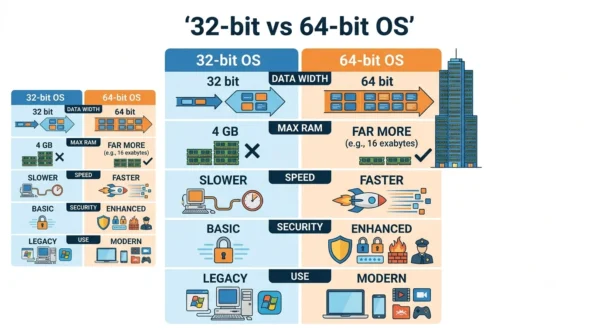
32-bit vs 64-bit Operating Systems: Comparison Table
| Aspect | 32-bit OS | 64-bit OS |
|---|---|---|
| Data width | Processes 32 bits at a time | Processes 64 bits at a time |
| Memory addressing | 32-bit addresses | 64-bit addresses |
| Max RAM | Up to 4 GB | Far more (128 GB+, up to 16 EB in theory) |
| Registers | Smaller (32-bit) | Larger (64-bit) |
| Large data sets | Less efficient | Better, thanks to larger registers |
| Application support | Runs 32-bit apps | Runs 64-bit apps and most 32-bit apps |
| Old 16-bit apps | Can often run them | Usually cannot |
| Security | Fewer protections | Extra features (e.g. Kernel Patch Protection, DEP) |
| Speed | Generally slower | Faster arithmetic and processing |
| Multitasking | Limited for heavy apps | Efficient for heavy apps |
| Hardware | Cheaper, older hardware | Needs a 64-bit CPU |
| Examples | Windows XP, older systems | Windows 10/11, macOS |
Memory and Performance
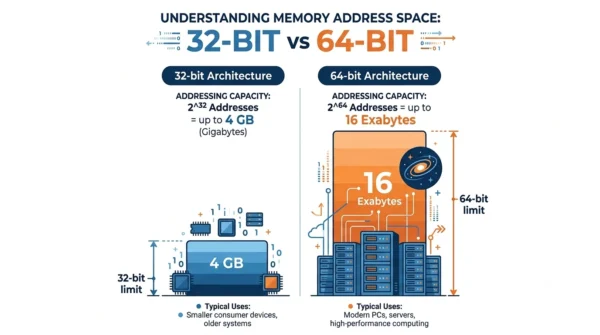
The clearest difference is memory. A 32-bit system uses 2³² addresses, so it caps out near 4 GB of RAM. A 64-bit system uses 2⁶⁴ addresses, so in theory it reaches up to 16 exabytes (about 16 billion GB), though real limits are far lower.
Performance follows from that. Because a 64-bit system has larger registers and more usable RAM, it handles big data sets and memory-heavy apps far better. So heavy multitasking, video editing, and large databases all run more smoothly on 64-bit.
Practical Notes and Code
Knowing the architecture matters for software development, system setup, and hardware compatibility. For example, a pointer is 32 bits wide on a 32-bit system and 64 bits wide on a 64-bit one. This short C snippet prints the pointer size, which reveals the architecture:
#include <stdio.h>

int main() {
    printf("Size of a pointer: %ld bits\n", sizeof(void*) * 8);
    return 0;
}
Best practices:
- Compile your code for the target architecture, so it stays compatible and fast.
- Use 64-bit systems for apps that need lots of memory or large datasets.
- Check how the chosen architecture affects library dependencies and resources.
Common pitfalls and fixes:
- Mixing 32-bit and 64-bit libraries causes compatibility issues, so keep all dependencies on the same architecture.
- Assuming 32-bit memory limits on a 64-bit system wastes capacity, so design apps to use the full 64-bit space.
When to Use 32-bit or 64-bit
Choose a 64-bit operating system for almost any modern computer. Because it uses more RAM and runs faster, it suits gaming, content creation, virtualisation, and heavy multitasking. So if your machine has more than 4 GB of RAM, 64-bit is the clear pick.
Choose a 32-bit operating system only for older or low-resource hardware. For instance, a legacy machine with 4 GB of RAM or less, or one running old 32-bit software, may still need it. Otherwise, modern systems assume 64-bit throughout.
Frequently Asked Questions
uname -m or arch in the terminal. Each of these reports whether the system is 32-bit or 64-bit.Wrapping Up
The 32-bit and 64-bit labels come down to how the CPU and OS handle data and memory. A 32-bit system caps out near 4 GB of RAM and suits legacy hardware, while a 64-bit system uses far more memory and powers modern computing.
So the rule is simple: pick 64-bit for any machine with more than 4 GB of RAM, and keep 32-bit only for old hardware or software. Because 64-bit is now the standard, most new systems and applications assume it throughout.
Related reading on DiffStudy: